This is a real conversation thread inside Instant Reply's inbox, captured from the live public demo at instantreply.co/demo. Here's exactly what waits for you when the AI has a draft ready.
Open a thread with a draft waiting#
The inbox header describes its own job in one line: "One queue for Instagram, WhatsApp Business, and Messenger. AI drafts first. Humans keep final control when the thread needs it." The thread list shows each conversation's real state as a badge, not a stage someone drew on a canvas: "Booking lead" is Needs reply, "Follow-up queue" is Follow-up queued, "Completed service" is Booked.
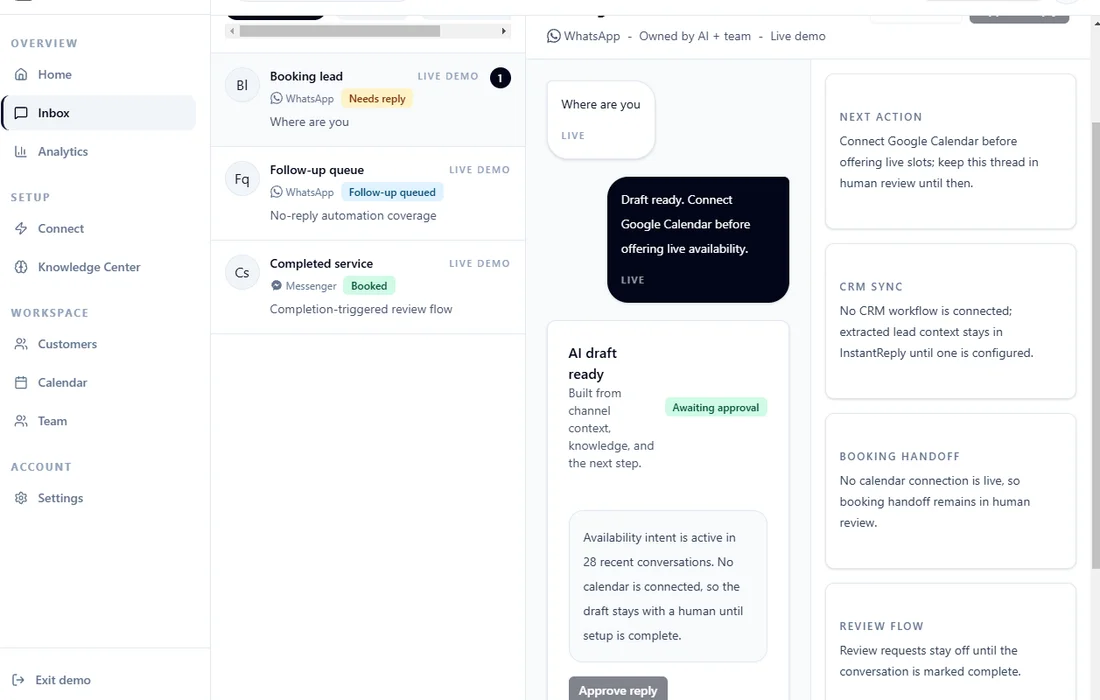
Opening "Booking lead" shows a WhatsApp thread marked "Owned by AI + team." The customer's message reads simply: "Where are you." Directly under it sits a separate note, marked LIVE: "Draft ready. Connect Google Calendar before offering live availability."
What the draft actually says, and why it's not sent yet#
Below that sits the draft itself, in a card titled "AI draft ready," subtitled "Built from channel context, knowledge, and the next step," with a green "Awaiting approval" badge. The card explains its own reasoning in plain language: "Availability intent is active in 28 recent conversations. No calendar is connected, so the draft stays with a human until setup is complete."
That's a genuinely useful detail, not filler copy. It's the product stating its own escalation logic on screen: when a needed integration isn't connected yet, the draft waits for a person instead of guessing.
The right rail explains itself#
Next to the thread, four small cards summarize where things stand: Next action ("Connect Google Calendar before offering live slots; keep this thread in human review until then"), CRM sync ("No CRM workflow is connected; extracted lead context stays in InstantReply until one is configured"), Booking handoff ("No calendar connection is live, so booking handoff remains in human review"), and Review flow ("Review requests stay off until the conversation is marked complete").
Three ways to handle it#
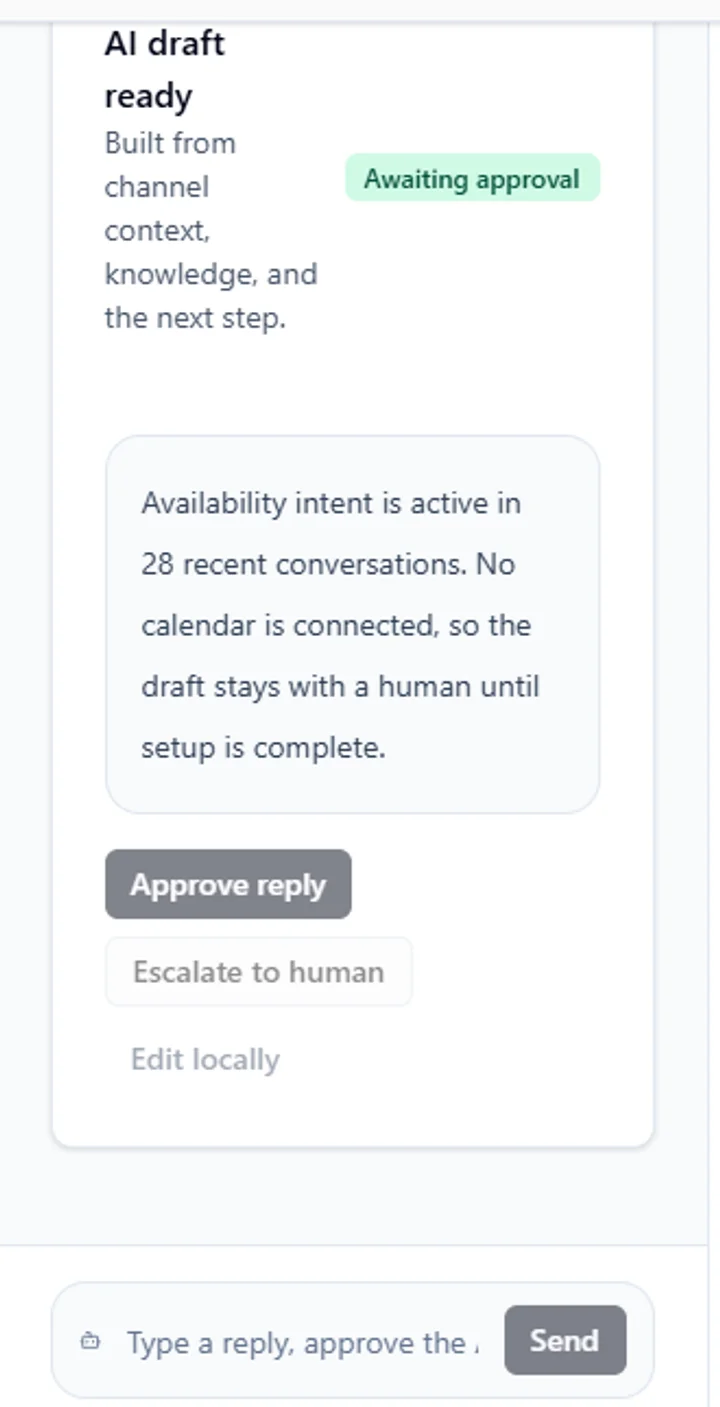
Every draft carries the same three buttons: Approve reply sends it as written, Escalate to human hands the thread to a teammate instead of leaving it in the AI's queue, and Edit locally lets you change the wording before anything sends. Underneath, the reply bar itself spells out all three options as one line of placeholder text: "Type a reply, approve the AI draft, or hand the thread to a teammate."
The three steps#
- Open Inbox from the sidebar and pick a thread. Each card shows its state: Needs reply, Follow-up queued, or Booked.
- Read the AI draft card: what it's built from, and any stated reason it's waiting on a human.
- Choose Approve reply, Escalate to human, or Edit locally, or type your own reply in the bar underneath.
This same human-in-the-loop logic is the whole idea behind skipping the flow builder: AI drafts from real context, and a person stays in control of what actually sends.
Want to open this exact thread yourself? Open the inbox in the interactive demo and click into "Booking lead."